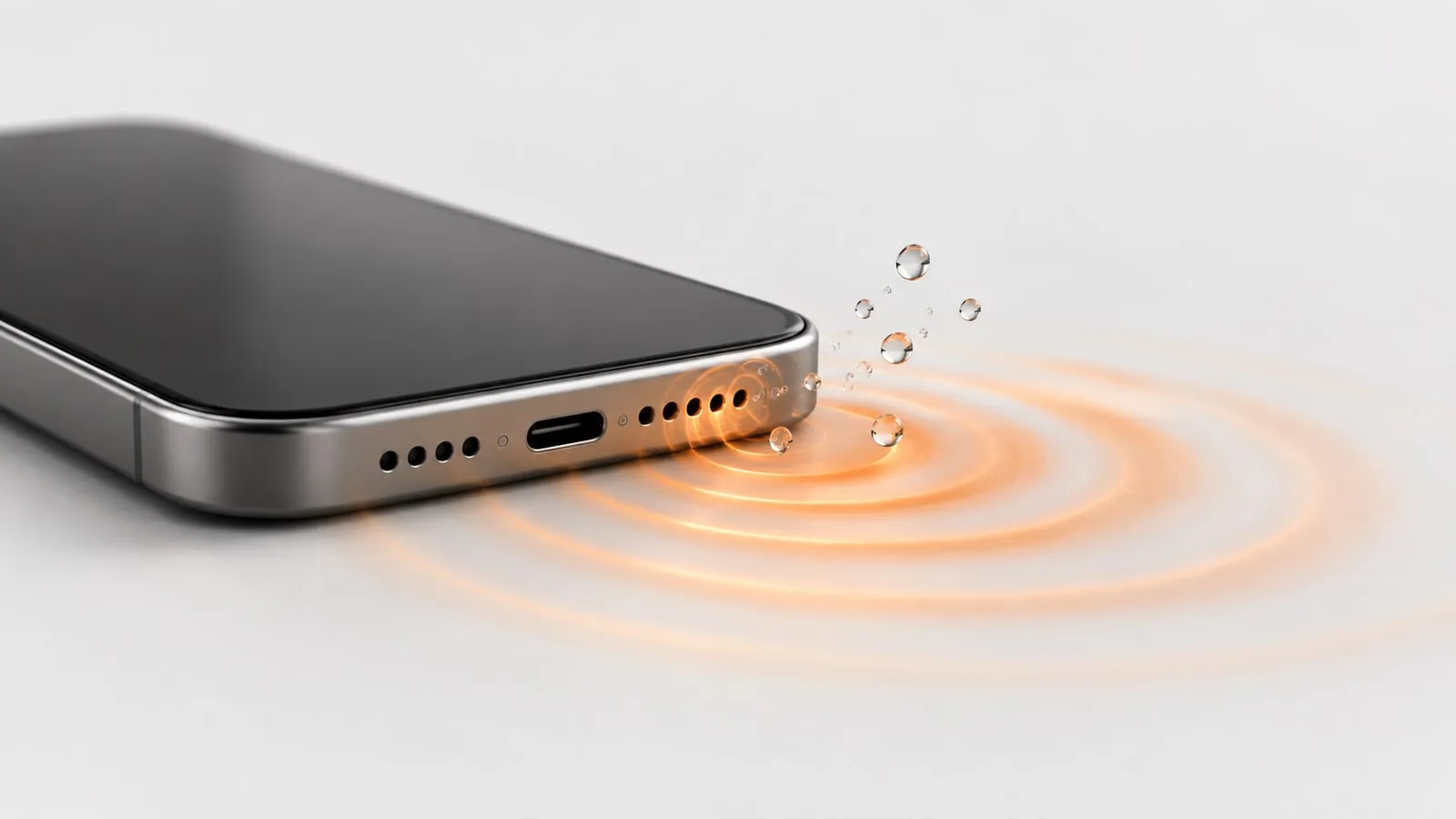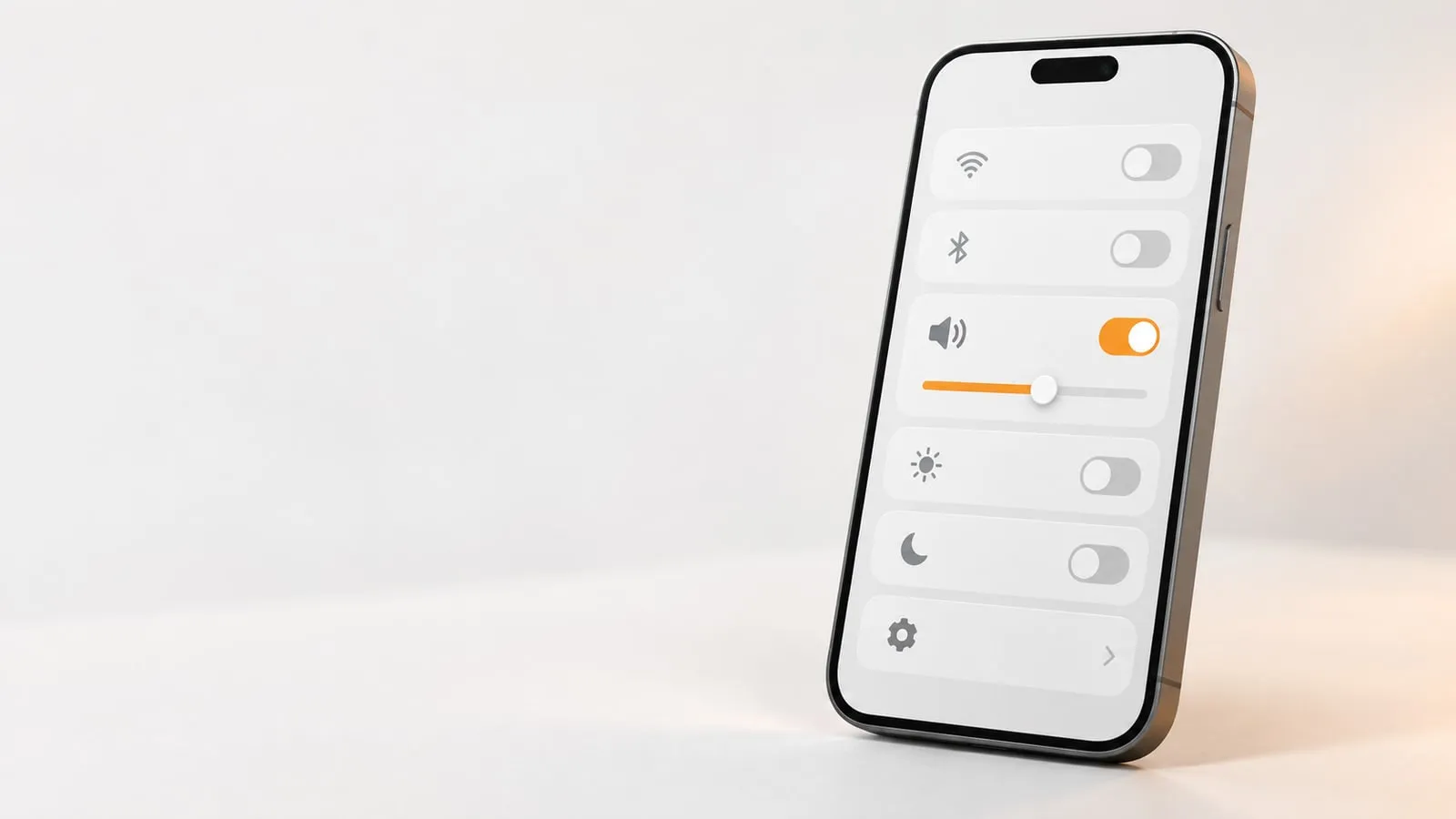
Most phones don’t have a speaker cleaner in Settings. iPhone, Samsung Galaxy and Google Pixel phones have no built-in speaker cleaning tone. Some Xiaomi, Redmi and POCO phones have a “Clear speaker” option, but it isn’t on every model or software version. “Secret codes” that claim to clean the speaker are fake.
You don’t need a setting anyway. The free Android speaker cleaner plays the same kind of cleaning tones in Chrome or any other browser, with vibration support on Android, and it works on iPhone too.
Below is what each brand actually offers, and what to use when the setting doesn’t exist.
Phone speaker cleaner settings by brand
| Brand | Built-in speaker cleaner? | What it does have | What to use instead |
|---|---|---|---|
| iPhone | No | Liquid-detection alert for the charging port | A web water eject tone, or a third-party shortcut |
| Apple Watch | Yes, Water Lock | Plays tones to clear water when you turn Water Lock off | Nothing else needed |
| Samsung Galaxy | No | Speaker test in Samsung Members Diagnostics, moisture warning for the USB-C port | A web speaker cleaner tone |
| Xiaomi, Redmi, POCO | Some models | Clear speaker, usually in Settings > Additional settings | Search Settings for “clear”; if missing, a web tool |
| Google Pixel | No | “Liquid or debris in USB port” alert | A web speaker cleaner tone |
| Other Android brands | Rarely | Varies | Search Settings for “speaker” or “clean”, otherwise a web tool |
iPhone: no water eject setting
iPhone has no speaker cleaner or water eject option anywhere in Settings or Control Center.
What iPhone does have is a liquid-detection alert. It appears when you connect a Lightning or USB-C cable or an accessory and the phone detects liquid in the port. It is a charging safety warning, not a speaker cleaner, and it has no settings screen of its own.
Apple’s advice for a wet iPhone is about drying, not sound:
- Tap the iPhone gently against your hand with the connector facing down.
- Leave it in a dry area with some airflow. A fan blowing cool air into the connector may help.
- Don’t use an external heat source or compressed air.
- Don’t insert cotton swabs or paper towels into the connector.
- Don’t put it in a bag of rice. Apple warns rice particles can damage the phone.
- Wait at least 5 hours before charging with a cable or connecting an accessory.
Apple also notes that water in the port can degrade speaker or microphone performance until it evaporates. A speaker cleaner tone can speed up the speaker side of that.
What about the Siri “Water Eject” shortcut?
You may have seen a “Water Eject” shortcut you can run by asking Siri. It is not an Apple feature. It is a third-party shortcut shared on shortcut websites, which you add to the Shortcuts app yourself. It plays a tone through the speaker, much like a web tool does.
It can work, but you have to install a shortcut from an outside source. A browser-based tool does the same job without adding anything to your phone. The iPhone speaker cleaner runs in Safari, with the note that iPhones block vibration for websites, so only the sound does the work there.
Apple Watch does have one
The feature people are often thinking of is on Apple Watch. Water Lock locks the screen while you swim. When you turn it off by pressing and holding the Digital Crown until the display says Unlocked, the watch plays a series of tones to clear water from its speaker. So Apple does use sound to push water out, just not on iPhone.
Samsung Galaxy: diagnostics, but no cleaning tone
Samsung phones have no speaker cleaning sound in Settings. They do have two related tools.
Samsung Members Diagnostics (speaker test)
The Samsung Members app includes Diagnostics, which checks around two dozen features. Speaker is one of them. The menu path differs by app version and region, and Samsung’s own guides describe two:
- Open Samsung Members, tap Support, then View tests, and pick a test or tap Test all.
- Or open Samsung Members, find Diagnostics on the Discover tab, tap Phone diagnostics, then choose a test.
This tells you whether the speaker plays, not whether it is clean, so it is most useful after cleaning.
The #0# test menu
On many Galaxy models, dialing #0# in the Samsung Phone app opens a hardware test menu with speaker and receiver tests. It is a diagnostic screen and doesn’t clean anything. Samsung doesn’t document it, it doesn’t work on every model, and it won’t open from a third-party dialer.
Moisture detected warning
If the USB-C port is wet, Samsung phones show a moisture warning and stop wired charging until the port is dry. Wireless charging still works on supported models. Samsung recommends unplugging, wiping the phone with a dry cloth, gently shaking it 5 to 10 times with the port facing down, and leaving it in a well-ventilated spot or in front of a fan. That warning is about the port, not the speaker. Sound can’t clear the charging port, which we explain in can sound remove water from the charging port.
Xiaomi, Redmi and POCO: “Clear speaker” on some models
Xiaomi is the exception among the big brands. On phones that have the feature, third-party guides give the path as:
Settings > Additional settings > Clear speaker
Those guides say it plays a loud sound for about 30 seconds, and suggest running it once or twice for light blockage, or a few more times with the speaker facing down for heavier dust.
The catch is availability. It is not on every Xiaomi, Redmi or POCO model, it may be missing depending on your MIUI or HyperOS version, and Xiaomi doesn’t publish a list of which phones have it. Menus can also move between software updates.
To check your phone, open Settings, tap the search bar and type clear or speaker. If “Clear speaker” appears, you can use it. If not, your phone doesn’t have it, and a web tool is the alternative.
Google Pixel: no speaker cleaner
Pixel phones have no speaker cleaning option. Google’s own help for sound problems suggests gently cleaning dirty speakers with a soft, lint-free cloth, and points you to separate steps if the phone shows a “Liquid or debris in USB port” message. Nothing in Pixel settings plays a cleaning tone.
Other Android phones
Brands and software versions vary too much to list every menu. To check yours:
- Open Settings.
- Tap the search bar at the top.
- Search speaker, then clean, then clear.
- If nothing cleaning-related appears, your phone has no built-in option.
Speaker cleaner codes are fake
Videos and posts sometimes share a “speaker cleaner code” or “speaker cleaner sound code number” to dial. There is no dial code that cleans a phone speaker, on any brand.
What exists are service and test codes, like Samsung’s #0#. Those open diagnostic screens that can play a test tone. They check the speaker. They don’t clean it.
Don’t dial codes you don’t understand. Some real service codes open engineering menus or reset settings, and a code copied from a random video can do something you didn’t intend.
If a video tells you to dial a number and then play a sound, the sound is doing whatever work gets done, not the code.
How to clean your speaker without a setting
A browser tool does the same job as Xiaomi’s Clear speaker option, on any phone. On Android:
- Turn off Do Not Disturb and disconnect Bluetooth headphones or speakers.
- Raise the media volume to maximum (not only the ringer volume).
- Open the Android speaker cleaner in Chrome or another browser.
- Choose Water mode (a pulsing 165 Hz tone for 60 seconds) for water, or Dust mode (a 200 to 1200 Hz sweep for 60 seconds) for dry dust.
- Turn on the vibration toggle if you want a little extra shaking. It works in Android browsers.
- Hold the phone with the bottom speaker facing down and tap start.
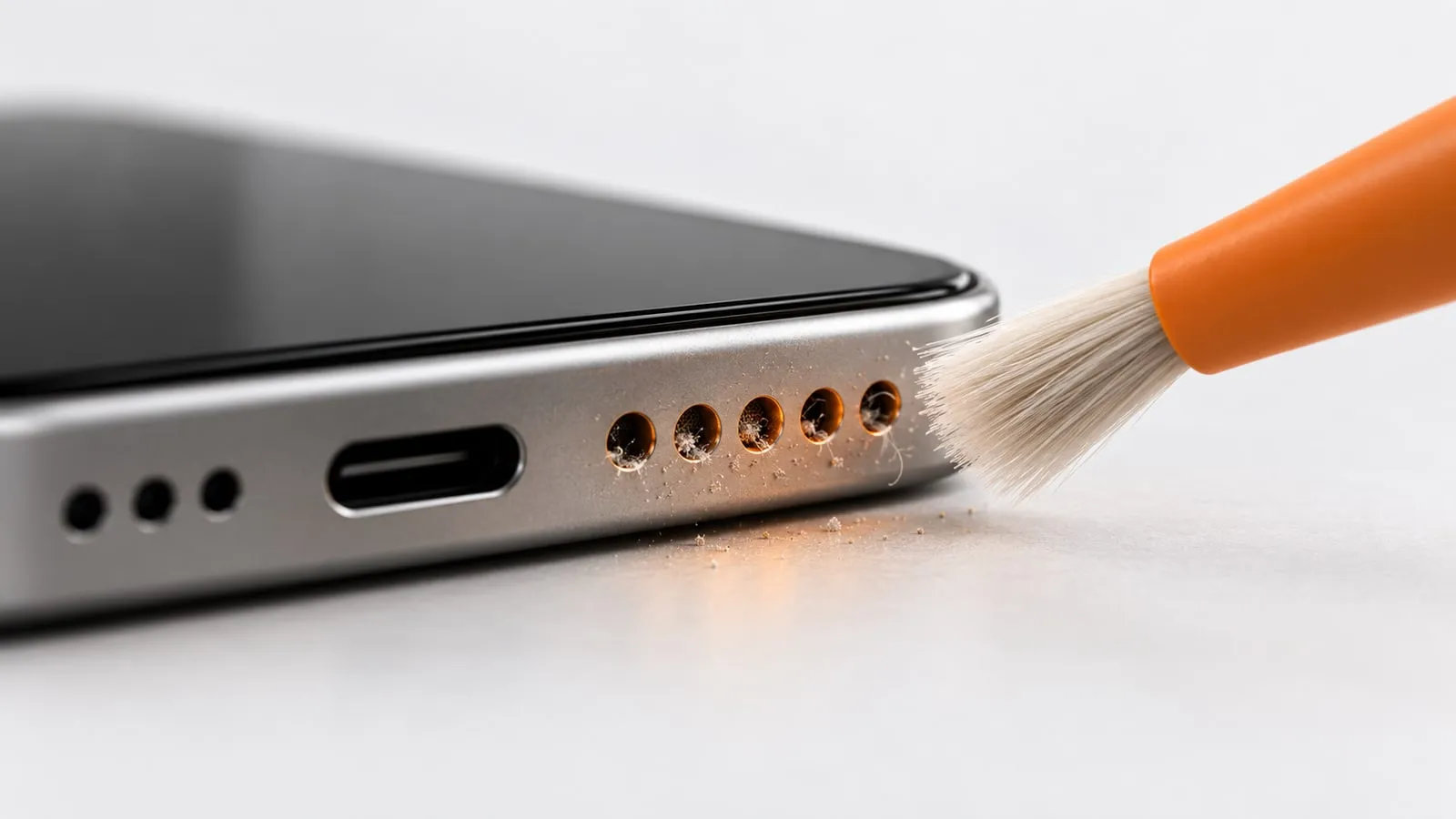
- Wipe the grille with a lint-free cloth and repeat two or three times.
For the small top speaker you hold to your ear, use the gentler Ear speaker mode (a 400 to 1500 Hz sweep for 45 seconds). If you are wondering whether this is safe for your speaker, we cover that in does a speaker cleaner work and is it safe.
When a settings check points to a repair
Built-in tests are most useful after you clean. Use them to decide whether you are done or need a repair:
- Samsung: if the Speaker test in Samsung Members Diagnostics fails after the phone has dried for a day, book a repair.
- Any phone: play the speaker test tones for left, right and both. One side silent, or crackling at every volume once dry, points to hardware damage. Our guide on how to test your phone speaker explains what each result means.
- Still muffled after drying: if the sound is still muffled after 48 hours of air drying and a few cleaning rounds, water or debris is likely deeper than sound can reach. See water in phone speaker: what to do for the next steps.
- Won’t charge, gets hot or won’t turn on: stop using it and take it to a repair shop.
Until then, the quickest fix doesn’t live in Settings. Open the free Android speaker cleaner, pick Water mode, and give it two or three rounds with the speaker facing down.
Sources
- Apple Support: If you see a liquid-detection alert on your iPhone
- Apple Support: Splash, water, and dust resistance of iPhone
- Apple Support: How to use Water Lock and eject water from your Apple Watch
- Reader’s Digest: Water Eject Siri shortcut
- Samsung UK: How to use Samsung Members Diagnostics
- Samsung US: Run diagnostics on your Galaxy devices with Samsung Members
- Samsung UK: My device displays a water drop icon and will not charge
- Beebom: Samsung secret codes list
- Xiaomi Advices: How to use Clear Speaker on Xiaomi
- Google Pixel Help: Why can’t I hear sound from my Pixel phone?